

Each has its own on/off toggle and they can be enabled in any combination. Toggling one never affects the others: turning MCP off blocks MCP triggering only, and the same workflow keeps starting from the interface and from its webhook.
All three are available on all environments, with no production-only restriction.
Where triggers are configured
Open the workflow settings page and go to the Triggers section. Manual sits at the top with its own toggle, followed by an Automated group holding the Fallback Inbox selector and the Webhook and MCP rows.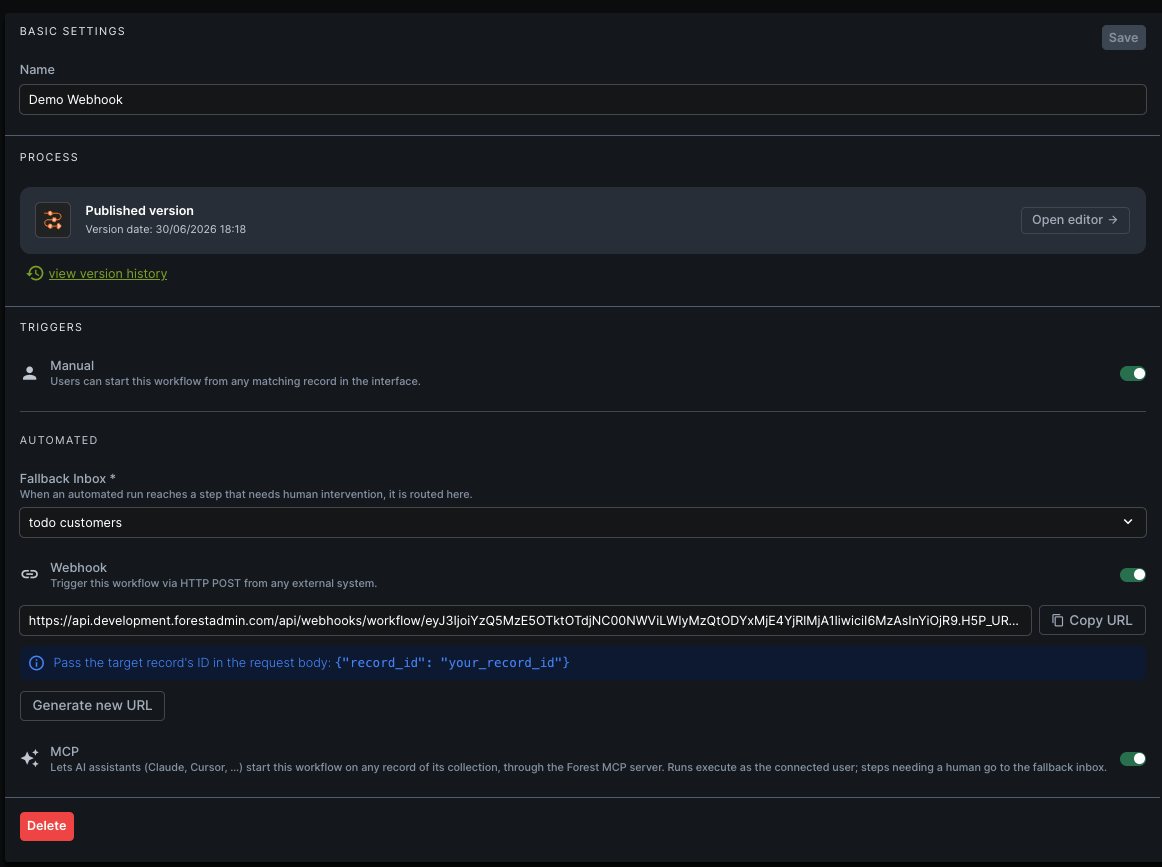
Before you can enable an automated trigger
Both automated triggers (Webhook and MCP) share three prerequisites.- You must be able to manage workflows. All three trigger toggles — Manual included — are disabled below the Admin, Process Owner or Developer level, since turning an automated trigger on is what makes a workflow startable with nobody watching. This is enforced in the interface; the underlying layout permission is broader today, so the API still accepts the change from an Editor.
- Forest Runtime must be running. An automated run can fire at any time, with nobody holding Forest open in a browser, so its steps can only run server-side. Until a runtime has reported in, the workflow settings page shows “Your Forest Runtime can’t be reached” instead of the trigger rows. On an environment still configured for the legacy browser engine, the rows do show but both toggles are locked, with the tooltip “This environment still runs workflows in the browser. Automated triggers need Forest Runtime.”
- A fallback inbox must be selected. Until one is picked, the Webhook and MCP toggles stay locked, with a tooltip saying so. When an automated run reaches a step that needs a human, there is no operator on the other end to hand it to — so the run is routed to that inbox for someone to pick up. See Inboxes & escalations.
A trigger that is already enabled stays actionable even if its fallback inbox is later cleared, so you can always turn it off. It re-locks once disabled.
The webhook trigger
When enabled, the webhook lets any external system, an ETL job, a partner service, a CRON in your own infrastructure, start a workflow run on a specific record by calling a stable URL. Two things are separated by design:- The URL identifies everything fixed about the trigger: which workflow runs, and against which rendering. The only per-call input is the target record.
- The token carries authentication and the identity the run acts as. The run reads and writes data as the token’s user, and the activity log attributes it to that user, so a webhook-triggered run can never do more than that user is allowed to.
Enabling the webhook
- Open the workflow settings page and go to the Triggers section.
- Toggle Webhook on.
- the endpoint URL is displayed inline with a copy button;
- a hint shows the JSON body to send, with the target record’s
record_id; - a Generate new URL button lets you rotate the URL (see Regenerating the URL).
Regenerating the URL
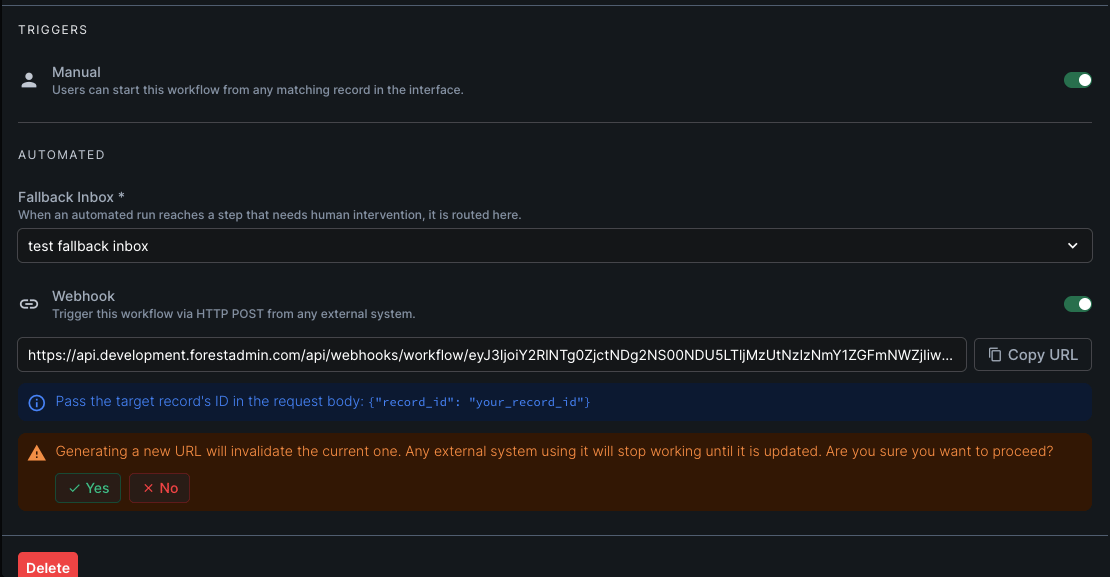
If a URL may have leaked, or you simply want to rotate it, generate a new one from the Generate new URL button below the current URL. When you confirm:- the URL is updated inline, and the copy button now copies the new one;
- a confirmation toaster briefly appears.
Revoking webhook access
You have three independent levers to stop a webhook, without necessarily touching the others:
Turning the toggle back on re-enables the same URL and token — it is a pause, not a reset.
The MCP trigger
When enabled, an AI assistant connected to the Forest MCP server can discover this workflow, start it on a record, and follow the run’s progress — using three tools:listWorkflows, triggerWorkflow, and getWorkflowRun.
There is nothing to copy or rotate here: the toggle is the whole configuration. The assistant is already authenticated against the MCP server through OAuth, and that session’s Forest user is the identity the run executes under — the same model as a manual start, not the webhook’s separately-provisioned URL and token.
Enabling MCP triggering is what makes the workflow reachable by assistants — and it is the only thing that does:
listWorkflowsreturns only the MCP-enabled workflows in the connected user’s rendering;triggerWorkflowon a workflow whose MCP toggle is off fails — even if the assistant already knows its id.
Enabling MCP triggering
- Open the workflow settings page and go to the Triggers section.
- Toggle MCP on.
listWorkflows call.
What an assistant can and cannot do
- It can start the workflow on a record and poll the run’s state, current step, and outcome.
- It cannot exceed the connected user’s permissions on the data the run reads and writes — every data step is gated by Roles & permissions. The trigger itself is bounded by the user’s rendering and the MCP toggle only: the record id the assistant supplies is not checked at trigger time (see the note on unvalidated records).
- It cannot answer a step that needs a human. A run parked on such a step is reported to the assistant, but finishing it happens in the Forest UI, from the fallback inbox (when one is configured).
Revoking MCP access
Auditing
Every automated run is recorded in the workflow run history and in your Activity Logs, attributed to the user the run acted as, and labelled by channel — via webhook or via MCP — so you can tell automated runs from manual ones, and from each other. An MCP trigger writes two complementary entries: requested the workflow ”…” via MCP before the run starts (the audit that blocks the trigger if it cannot be written, with no run attached yet), and triggered the workflow ”…” via MCP once the run exists. Only the first is guaranteed — the second is best-effort — so count triggered rows for runs actually started.Learn more
Trigger via webhook (API)
The HTTP contract: body, response codes, idempotency, rate limits.
Forest MCP Server
The workflow tools, and the discover → trigger → poll flow.
Forest Runtime
Required for automated triggers: run your workflow steps server-side.
Workflows overview
Build and manage workflows in the no-code editor.
Executing workflows
How operators run workflows from the interface.
Roles & permissions
Control what a workflow run can access.