> ## Documentation Index
> Fetch the complete documentation index at: https://forest-feature-prd-742-mcp-workflow-tools-docs.mintlify.site/llms.txt
> Use this file to discover all available pages before exploring further.
# Workflow triggers
> Choose how a workflow starts — manually from the interface, from an external system via a webhook, or from an AI assistant through the Forest MCP server.
A workflow can be started in three independent ways:
| Trigger | Who starts the run | Default |
| ----------- | --------------------------------------------------------------------------------------------------------------------------------------------------- | -------- |
| **Manual** | Users, from a matching record in the interface (List View, Summary/Details, or a Workspace). See [Executing workflows](/product/execute/workflows). | Enabled |
| **Webhook** | Any external system, via an authenticated HTTP POST to a stable URL. | Disabled |
| **MCP** | An AI assistant (Claude, Cursor, …) connected to the [Forest MCP server](/product/embed/mcp-server). | Disabled |
Each has its own on/off toggle and they can be enabled in any combination. Toggling one **never** affects the others: turning MCP off blocks MCP triggering only, and the same workflow keeps starting from the interface and from its webhook.
All three are available on **all environments**, with no production-only restriction.
## Where triggers are configured
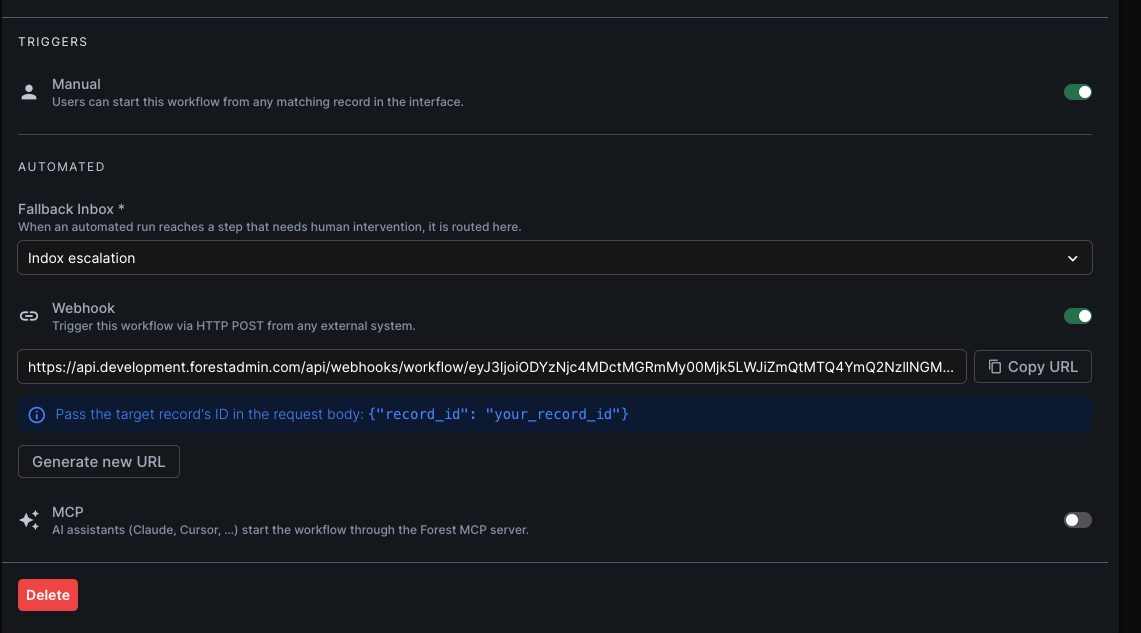
Open the workflow settings page and go to the **Triggers** section. **Manual** sits at the top with its own toggle, followed by an **Automated** group holding the **Fallback Inbox** selector and the **Webhook** and **MCP** rows.
 ### Before you can enable an automated trigger
Both automated triggers (Webhook and MCP) share two prerequisites. Until both are met, their toggles stay locked, with a tooltip explaining which one is missing.
* **[Forest Runtime](/product/process/workflows/forest-runtime) must be installed.** An automated run can fire at any time, with nobody holding Forest open in a browser, so its steps can only run server-side. The tooltip reads *"Ask your tech team to install the Workflow Executor."*
* **A fallback inbox must be selected.** When an automated run reaches a step that needs a human, there is no operator on the other end to hand it to — so the run is routed to that inbox for someone to pick up. See [Inboxes & escalations](/product/manage/inbox).
A trigger that is already enabled stays actionable even if its fallback inbox is later cleared, so you can always turn it **off**. It re-locks once disabled.
## The webhook trigger
When enabled, the webhook lets any external system, an ETL job, a partner service, a CRON in your own infrastructure, start a workflow run on a specific record by calling a stable URL.
Two things are separated by design:
* **The URL** identifies everything *fixed* about the trigger: which workflow runs, and against which rendering. The only per-call input is the target record.
* **The token** carries authentication *and* the identity the run acts as. The run reads and writes data as the token's user, and the activity log attributes it to that user, so a webhook-triggered run can never do more than that user is allowed to.
For the full HTTP contract, request body, response codes, idempotency, and rate limits, see the [Trigger a workflow via webhook](/reference/api/endpoints/trigger-workflow-webhook) API reference.
### Enabling the webhook
1. Open the workflow settings page and go to the **Triggers** section.
2. Toggle **Webhook** on.
Once enabled:
* the endpoint **URL** is displayed inline with a **copy** button;
* a hint shows the JSON body to send, with the target record's `record_id`;
* a **Generate new URL** button lets you rotate the URL (see [Regenerating the URL](#regenerating-the-url)).
Copy the URL and use it from your external system with a valid application token. The workflow starts on the record you pass in the request body.
### Regenerating the URL
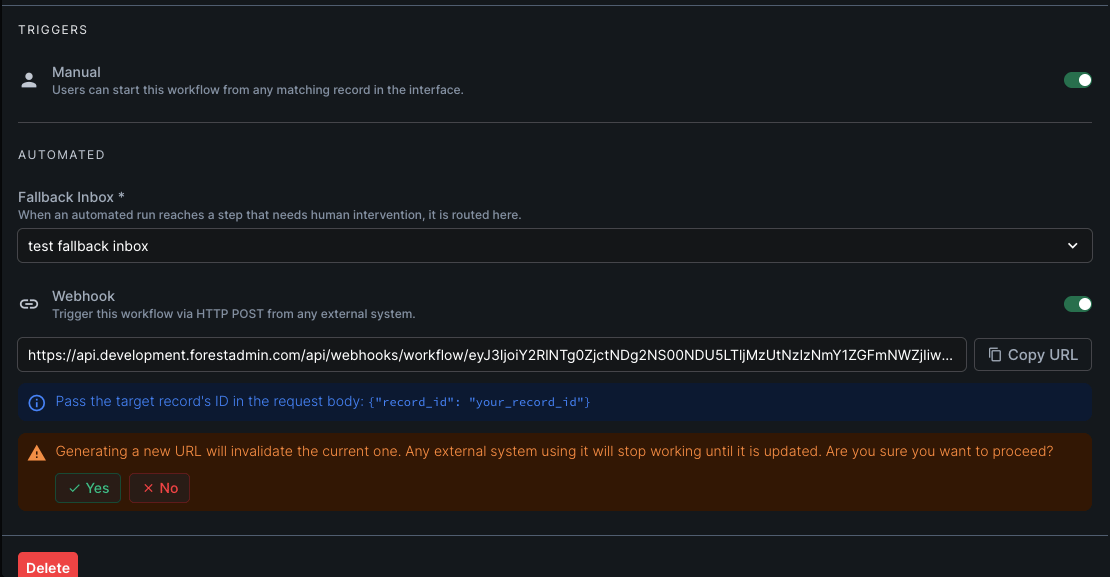
If a URL may have leaked, or you simply want to rotate it, generate a new one from the **Generate new URL** button below the current URL.
Generating a new URL **immediately invalidates the current one**. Any integration still calling the old URL will start failing until you update it with the new URL.
When you confirm:
* the URL is updated inline, and the **copy** button now copies the new one;
* a confirmation toaster briefly appears.
### Before you can enable an automated trigger
Both automated triggers (Webhook and MCP) share two prerequisites. Until both are met, their toggles stay locked, with a tooltip explaining which one is missing.
* **[Forest Runtime](/product/process/workflows/forest-runtime) must be installed.** An automated run can fire at any time, with nobody holding Forest open in a browser, so its steps can only run server-side. The tooltip reads *"Ask your tech team to install the Workflow Executor."*
* **A fallback inbox must be selected.** When an automated run reaches a step that needs a human, there is no operator on the other end to hand it to — so the run is routed to that inbox for someone to pick up. See [Inboxes & escalations](/product/manage/inbox).
A trigger that is already enabled stays actionable even if its fallback inbox is later cleared, so you can always turn it **off**. It re-locks once disabled.
## The webhook trigger
When enabled, the webhook lets any external system, an ETL job, a partner service, a CRON in your own infrastructure, start a workflow run on a specific record by calling a stable URL.
Two things are separated by design:
* **The URL** identifies everything *fixed* about the trigger: which workflow runs, and against which rendering. The only per-call input is the target record.
* **The token** carries authentication *and* the identity the run acts as. The run reads and writes data as the token's user, and the activity log attributes it to that user, so a webhook-triggered run can never do more than that user is allowed to.
For the full HTTP contract, request body, response codes, idempotency, and rate limits, see the [Trigger a workflow via webhook](/reference/api/endpoints/trigger-workflow-webhook) API reference.
### Enabling the webhook
1. Open the workflow settings page and go to the **Triggers** section.
2. Toggle **Webhook** on.
Once enabled:
* the endpoint **URL** is displayed inline with a **copy** button;
* a hint shows the JSON body to send, with the target record's `record_id`;
* a **Generate new URL** button lets you rotate the URL (see [Regenerating the URL](#regenerating-the-url)).
Copy the URL and use it from your external system with a valid application token. The workflow starts on the record you pass in the request body.
### Regenerating the URL
If a URL may have leaked, or you simply want to rotate it, generate a new one from the **Generate new URL** button below the current URL.
Generating a new URL **immediately invalidates the current one**. Any integration still calling the old URL will start failing until you update it with the new URL.
When you confirm:
* the URL is updated inline, and the **copy** button now copies the new one;
* a confirmation toaster briefly appears.
 ### Revoking webhook access
You have three independent levers to stop a webhook, without necessarily touching the others:
| Lever | Effect | Calls then return |
| --------------------------------- | --------------------------------------------------- | ----------------- |
| **Disable the Webhook toggle** | Turns the trigger off. URL and token are unchanged. | `404` |
| **Generate new URL** | Invalidates the current URL. | `400` (old URL) |
| **Invalidate / expire the token** | Done by the token's user, from account settings. | `401` |
Turning the toggle back on re-enables the *same* URL and token — it is a pause, not a reset.
## The MCP trigger
When enabled, an AI assistant connected to the [Forest MCP server](/product/embed/mcp-server) can discover this workflow, start it on a record, and follow the run's progress — using three tools: `listWorkflows`, `triggerWorkflow`, and `getWorkflowRun`.
There is nothing to copy or rotate here: **the toggle is the whole configuration**. The assistant is already authenticated against the MCP server through OAuth, and that session's Forest user is the identity the run executes under — the same model as a manual start, not the webhook's separately-provisioned URL and token.
Enabling MCP triggering is what makes the workflow visible to assistants at all:
* `listWorkflows` returns only MCP-enabled workflows, and only those the connected user can reach in the rendering;
* `triggerWorkflow` on a workflow whose MCP toggle is off fails — even if the assistant already knows its id.
### Enabling MCP triggering
1. Open the workflow settings page and go to the **Triggers** section.
2. Toggle **MCP** on.
That's it. Assistants connected to your Forest MCP server pick the workflow up on their next `listWorkflows` call.
### What an assistant can and cannot do
* It **can** start the workflow on a record and poll the run's state, current step, and outcome.
* It **cannot** exceed the connected user's permissions — data and actions are gated by [Roles & permissions](/get-started/control/roles-permissions) exactly as in the interface.
* It **cannot** answer a step that needs a human. A run parked on such a step is *reported* to the assistant, but finishing it happens in the Forest UI, from the fallback inbox.
For the tool contracts and the discover → trigger → poll flow, see [Triggering workflows from an AI assistant](/product/embed/mcp-server#triggering-workflows-from-an-ai-assistant).
### Revoking MCP access
| Lever | Effect |
| ----------------------------------- | ------------------------------------------------------------------------------------------------------------------------------------------------------------------- |
| **Disable the MCP toggle** | The workflow disappears from `listWorkflows` and can no longer be triggered through MCP. Manual and webhook starts are unaffected. |
| **Restrict the MCP server's tools** | Drop `triggerWorkflow` from `enabledTools` to remove MCP triggering across *all* workflows at once. See [Restrict tools](/product/embed/mcp-server#restrict-tools). |
| **Revoke the user's access** | The assistant acts as its connected Forest user; removing that user's access to the rendering or the workflow stops its runs. |
## Auditing
Every automated run is recorded in the workflow run history and in your **Activity Logs**, attributed to the user the run acted as, and labelled by channel — *via webhook* or *via MCP* — so you can tell automated runs from manual ones, and from each other.
## Learn more
The HTTP contract: body, response codes, idempotency, rate limits.
The workflow tools, and the discover → trigger → poll flow.
Required for automated triggers: run your workflow steps server-side.
Build and manage workflows in the no-code editor.
How operators run workflows from the interface.
Control what a workflow run can access.
### Revoking webhook access
You have three independent levers to stop a webhook, without necessarily touching the others:
| Lever | Effect | Calls then return |
| --------------------------------- | --------------------------------------------------- | ----------------- |
| **Disable the Webhook toggle** | Turns the trigger off. URL and token are unchanged. | `404` |
| **Generate new URL** | Invalidates the current URL. | `400` (old URL) |
| **Invalidate / expire the token** | Done by the token's user, from account settings. | `401` |
Turning the toggle back on re-enables the *same* URL and token — it is a pause, not a reset.
## The MCP trigger
When enabled, an AI assistant connected to the [Forest MCP server](/product/embed/mcp-server) can discover this workflow, start it on a record, and follow the run's progress — using three tools: `listWorkflows`, `triggerWorkflow`, and `getWorkflowRun`.
There is nothing to copy or rotate here: **the toggle is the whole configuration**. The assistant is already authenticated against the MCP server through OAuth, and that session's Forest user is the identity the run executes under — the same model as a manual start, not the webhook's separately-provisioned URL and token.
Enabling MCP triggering is what makes the workflow visible to assistants at all:
* `listWorkflows` returns only MCP-enabled workflows, and only those the connected user can reach in the rendering;
* `triggerWorkflow` on a workflow whose MCP toggle is off fails — even if the assistant already knows its id.
### Enabling MCP triggering
1. Open the workflow settings page and go to the **Triggers** section.
2. Toggle **MCP** on.
That's it. Assistants connected to your Forest MCP server pick the workflow up on their next `listWorkflows` call.
### What an assistant can and cannot do
* It **can** start the workflow on a record and poll the run's state, current step, and outcome.
* It **cannot** exceed the connected user's permissions — data and actions are gated by [Roles & permissions](/get-started/control/roles-permissions) exactly as in the interface.
* It **cannot** answer a step that needs a human. A run parked on such a step is *reported* to the assistant, but finishing it happens in the Forest UI, from the fallback inbox.
For the tool contracts and the discover → trigger → poll flow, see [Triggering workflows from an AI assistant](/product/embed/mcp-server#triggering-workflows-from-an-ai-assistant).
### Revoking MCP access
| Lever | Effect |
| ----------------------------------- | ------------------------------------------------------------------------------------------------------------------------------------------------------------------- |
| **Disable the MCP toggle** | The workflow disappears from `listWorkflows` and can no longer be triggered through MCP. Manual and webhook starts are unaffected. |
| **Restrict the MCP server's tools** | Drop `triggerWorkflow` from `enabledTools` to remove MCP triggering across *all* workflows at once. See [Restrict tools](/product/embed/mcp-server#restrict-tools). |
| **Revoke the user's access** | The assistant acts as its connected Forest user; removing that user's access to the rendering or the workflow stops its runs. |
## Auditing
Every automated run is recorded in the workflow run history and in your **Activity Logs**, attributed to the user the run acted as, and labelled by channel — *via webhook* or *via MCP* — so you can tell automated runs from manual ones, and from each other.
## Learn more
The HTTP contract: body, response codes, idempotency, rate limits.
The workflow tools, and the discover → trigger → poll flow.
Required for automated triggers: run your workflow steps server-side.
Build and manage workflows in the no-code editor.
How operators run workflows from the interface.
Control what a workflow run can access.